Service Manuals, User Guides, Schematic Diagrams or docs for : CANON Copiers GP 405 ServBull Jp_gen gpgen-13
<< Back | HomeMost service manuals and schematics are PDF files, so You will need Adobre Acrobat Reader to view : Acrobat Download Some of the files are DjVu format. Readers and resources available here : DjVu Resources
For the compressed files, most common are zip and rar. Please, extract files with Your favorite compression software ( WinZip, WinRAR ... ) before viewing. If a document has multiple parts, You should download all, before extracting.
Good luck. Repair on Your own risk. Make sure You know what You are doing.
Image preview - the first page of the document
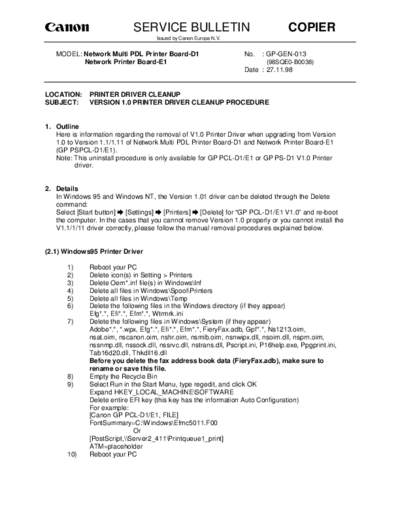
>> Download gpgen-13 documenatation <<
Text preview - extract from the document
                             SERVICE BULLETIN                                       COPIER
                                     Issued by Canon Europa N.V.


   MODEL: Network Multi PDL Printer Board-D1                         No.   : GP-GEN-013
          Network Printer Board-E1                                          (98SQE0-B0038)
                                                                     Date : 27.11.98


LOCATION:     PRINTER DRIVER CLEANUP
SUBJECT:      VERSION 1.0 PRINTER DRIVER CLEANUP PROCEDURE


1. Outline
   Here is information regarding the removal of V1.0 Printer Driver when upgrading from Version
   1.0 to Version 1.1/1.11 of Network Multi PDL Printer Board-D1 and Network Printer Board-E1
   (GP PSPCL-D1/E1).
   Note: This uninstall procedure is only available for GP PCL-D1/E1 or GP PS-D1 V1.0 Printer
          driver.


2. Details
   In Windows 95 and Windows NT, the Version 1.01 driver can be deleted through the Delete
   command:

   Select [Start button] [Settings] [Printers] [Delete] for "GP PCL-D1/E1 V1.0" and re-boot
   the computer. In the cases that you cannot remove Version 1.0 properly or you cannot install the
   V1.1/1/11 driver correctly, please follow the manual removal procedures explained below.


(2.1) Windows95 Printer Driver

       1)     Reboot your PC
       2)     Delete icon(s) in Setting > Printers
       3)     Delete Oem*.inf file(s) in Windows\Inf
       4)     Delete all files in Windows\Spool\Printers
       5)     Delete all files in Windows\Temp
       6)     Delete the following files in the Windows directory (if they appear)
              Efg*.*, Efi*.*, Efm*.*, Wtrmrk.ini
       7)     Delete the following files in Windows\System (if they appear)
              Adobe*.*, *.wpx, Efg*.*, Efi*.*, Efm*.*, FieryFax.adb, Gpf*.*, Ns1213.oim,
              nsat.oim, nscanon.oim, nshr.oim, nsmib.oim, nsnwipx.dll, nsoim.dll, nsprn.oim,
              nssnmp.dll, nssock.dll, nssrvc.dll, nstrans.dll, Pscript.ini, P16help.exe, Ppgprint.ini,
              Tab16d20.dll, Thkdll16.dll
              Before you delete the fax address book data (FieryFax.adb), make sure to
              rename or save this file.
       8)     Empty the Recycle Bin
       9)     Select Run in the Start Menu, type regedit, and click OK
              Expand HKEY_LOCAL_MACHINE\SOFTWARE
              Delete entire EFI key (this key has the information Auto Configuration)
              For example:
              [Canon GP PCL-D1/E1, FILE]
              FontSummary=C:\Windows\Efmc5011.F00
                               Or
              [PostScript,\\Server2_411\Printqueue1_print]
              ATM=placeholder
       10)    Reboot your PC
Copier                                            -2-                                    GP-GEN-013

(2.2)   Windows NT4.0 Printer Driver
        1)   Reboot your PC
        2)   Delete icon(s) in Setting > Printers
        3)   Delete following files and directories in \Winnt40\System32\Spool\Drivers\W32x86
        4)   Delete the following files in \Winnt40\System32\directory: (if they appear)
             ns1213.oim, nsat.oim, nscanon.oim, nshr.oim, nsmib.dll, nsoim.dll, nsprt.oim,
             nssnmp.dll, nssrvc.dll, nstrans.dll, FieryFax.adb
             Before you delete the fax address book data (FieryFax.adb), make sure to
             rename or save this file.
        5)   Delete wtrmrk.ini file in \Winnt40\
        6)   Select Run in the Start menu, type regedt32, and Click OK
        7)   Bring the HKEY_LOCAL_MACHINE window to be foreground
        8)   Delete all values in:
             System\CurrentControlSet\Control\Print\Environment\Windows NT x86\Drivers
        9)   Delete all page sizes in System\CurrentControlSet\Control\Print\Forms
        10)  Delete OEM folder(s) in System\CurrentControlSet\Control\Print\Printers
        11)  Delete Software\EFI folder
        12)  Select Exit in the Registry menu and then hard reboot your PC (not just log off)


(2.3)   Notes
        1)    If you are unable to delete a file because it is in use, continue with the other steps,
              reboot the machine, then delete the file before reinstalling a new driver.
        2)    When you install the new printer driver, if you get the window with the message "A
              driver is already installed for this printer" and the choices to keep or replace the
              existing driver, you may have missed a part of cleanup. Re-do the cleanup and reboot.
              You should not get this message if you've thoroughly cleaned the system.


3. Batch Files
   The batch files which execute the above-mentioned procedures automatically
   (_clean95.bat & _cleanNT, bat) will be available on the CENV_BBS.

   This batch file should be placed in Windows System directory to execute this program.
◦ Jabse Service Manual Search 2026 ◦ Jabse Pravopis ◦ onTap.bg ◦ Other service manual resources online : Fixya ◦ eServiceinfo