Service Manuals, User Guides, Schematic Diagrams or docs for : CANON Copiers GP 405 ServBull ServBullGP405 gpgen-26
<< Back | HomeMost service manuals and schematics are PDF files, so You will need Adobre Acrobat Reader to view : Acrobat Download Some of the files are DjVu format. Readers and resources available here : DjVu Resources
For the compressed files, most common are zip and rar. Please, extract files with Your favorite compression software ( WinZip, WinRAR ... ) before viewing. If a document has multiple parts, You should download all, before extracting.
Good luck. Repair on Your own risk. Make sure You know what You are doing.
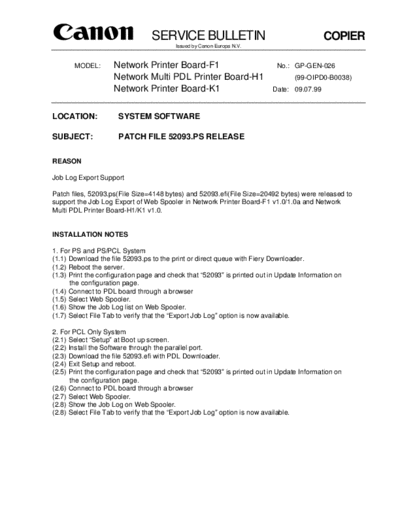
Image preview - the first page of the document
>> Download gpgen-26 documenatation <<
Text preview - extract from the document
                                 SERVICE BULLETIN                                         COPIER
                                         Issued by Canon Europa N.V.


       MODEL:       Network Printer Board-F1                               No.: GP-GEN-026
                    Network Multi PDL Printer Board-H1                           (99-OIPD0-B0038)
                    Network Printer Board-K1                             Date: 09.07.99


LOCATION:             SYSTEM SOFTWARE

SUBJECT:              PATCH FILE 52093.PS RELEASE


REASON

Job Log Export Support

Patch files, 52093.ps(File Size=4148 bytes) and 52093.efi(File Size=20492 bytes) were released to
support the Job Log Export of Web Spooler in Network Printer Board-F1 v1.0/1.0a and Network
Multi PDL Printer Board-H1/K1 v1.0.


INSTALLATION NOTES

1. For PS and PS/PCL System
(1.1) Download the file 52093.ps to the print or direct queue with Fiery Downloader.
(1.2) Reboot the server.
(1.3) Print the configuration page and check that "52093" is printed out in Update Information on
      the configuration page.
(1.4) Connect to PDL board through a browser
(1.5) Select Web Spooler.
(1.6) Show the Job Log list on Web Spooler.
(1.7) Select File Tab to verify that the "Export Job Log" option is now available.

2. For PCL Only System
(2.1) Select "Setup" at Boot up screen.
(2.2) Install the Software through the parallel port.
(2.3) Download the file 52093.efi with PDL Downloader.
(2.4) Exit Setup and reboot.
(2.5) Print the configuration page and check that "52093" is printed out in Update Information on
       the configuration page.
(2.6) Connect to PDL board through a browser
(2.7) Select Web Spooler.
(2.8) Show the Job Log on Web Spooler.
(2.8) Select File Tab to verify that the "Export Job Log" option is now available.
◦ Jabse Service Manual Search 2026 ◦ Jabse Pravopis ◦ onTap.bg ◦ Other service manual resources online : Fixya ◦ eServiceinfo