Service Manuals, User Guides, Schematic Diagrams or docs for : Samsung DVD DVD-P355 dvd-p355 05_Operation Instruction & Installation

<< Back | Home

Most service manuals and schematics are PDF files, so You will need Adobre Acrobat Reader to view : Acrobat Download Some of the files are DjVu format. Readers and resources available here : DjVu Resources
For the compressed files, most common are zip and rar. Please, extract files with Your favorite compression software ( WinZip, WinRAR ... ) before viewing. If a document has multiple parts, You should download all, before extracting.
Good luck. Repair on Your own risk. Make sure You know what You are doing.


Image preview - the first page of the document
05_Operation Instruction & Installation


>> Download 05_Operation Instruction & Installation documenatation <<

Text preview - extract from the document
12. Operating Instructions


                                                           SETUP


            Description
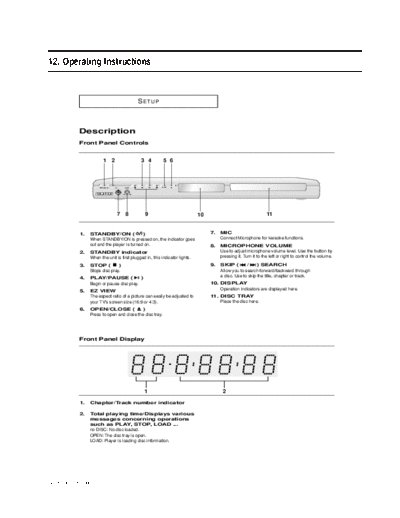
            Front Panel Controls


                        1 2                                3 4      5 6


                       STANDBY/ON           VOLUME                 EZ VIEW
                                    MIC


                                          MIN        MAX


                                      7         8           9                10                                  11


            1.   STANDBY/ON (                )                                    7.   MIC
                 When STANDBY/ON is pressed on, the indicator goes                     Connect Microphone for karaoke functions.
                 out and the player is turned on.                                 8.   MICROPHONE VOLUME
            2.   STANDBY indicator                                                     Use to adjust microphone volume level. Use the button by
                 When the unit is first plugged in, this indicator lights.             pressing it. Turn it to the left or right to control the volume.
            3.   STOP (         )                                                 9.   SKIP (        /     ) SEARCH
                 Stops disc play.                                                      Allow you to search forward/backward through
                                                                                       a disc. Use to skip the title, chapter or track.
            4.   PLAY/PAUSE (              )
                 Begin or pause disc play.                                        10. DISPLAY
                                                                                      Operation indicators are displayed here.
            5.   EZ VIEW
                 The aspect ratio of a picture can easily be adjusted to          11. DISC TRAY
                 your TV's screen size (16:9 or 4:3).                                 Place the disc here.
            6.   OPEN/CLOSE (              )
                 Press to open and close the disc tray.


            Front Panel Display


                                                            1                           2

            1.   Chapter/Track number indicator

            2.   Total playing time/Displays various
                 messages concerning operations
                 such as PLAY, STOP, LOAD ...
                 no DISC: No disc loaded.
                 OPEN: The disc tray is open.
                 LOAD: Player is loading disc information.

                                                                             ENG-8


Samsung Electronics                                                                                                                                       12-1
Operating Instructions


                                             SETUP


                                                                                                                                                       Setup
               Rear Panel


                                                                      1                      2


                                                    1            3                     4           5


               1.   DIGITAL AUDIO OUT JACKS                                       4.       VIDEO OUT JACK
                    - Use either an optical or coaxial digital cable to connect            - Use a video cable to connect to the Video input jack on
                      to a compatible Dolby Digital receiver.                                your television.
                    - Use either an optical or coaxial digital cable to connect            - The Video Output in Setup Menu must be set to
                      to an A/V Amplifier that contains a Dolby Digital,                     COMPOSITE/S-VIDEO.
                      MPEG2 or DTS decoder.                                       5.       S-VIDEO OUT JACK
               2.   COMPONENT VIDEO OUT JACKS                                              - Use the S-Video cable to connect this jack to the
                    - Use these jacks if you have a TV with Component                        S-Video jack on your television for higher picture
                      Video in jacks. These jacks provide PR, PB and Y video.                quality.
                    - If Component(P-SCAN) Video Output is selected in                     - The Video Output in Setup Menu must be set to
                      Setup Menu, progressive scan mode will work.                           COMPOSITE/S-VIDEO.
                    - If Component(I-SCAN) Video Output is selected in
                      Setup Menu, interlaced scan mode will work.
               3.   AUDIO OUT JACKS
                    Connect to the Audio input jacks of your television or
                    audio/video receiver.


               Note
               - Consult your TV User's Manual to find out if your TV supports Progressive Scan (P-SCAN).
                 If Progressive Scan is supported, follow the TV User's Manual regarding Progressive Scan settings in the
                 TV's menu system.
               - If Component (P-SCAN) Video Output is selected in Setup Menu, Video and S-Video Outputs do not work.
               - See pages 52 ~ 53 to get more information on how to use the setup menu.


                                                                             ENG-9


12-2                                                                                                                                       Samsung Electronics
                                                                                                    Operating Instructions


                       SETUP


            Tour of the Remote Control
                                       1.   DVD POWER Button
                                            Turns the power on or off.
                                       2.   NUMBER Buttons
              1                 11
                                       3.   PROG Button
                                            Allows you to program a specific order.
                                       4.   STEP Button
              2                             Advances play one frame at a time.
                                       5.   SEARCH/SKIP Buttons (                    /  ,     /          )
                                            Allow you to search forward/backward through a disc.
                                12          Use to skip the title, chapter or track.
              3
                                13     6.   STOP Button (               )
              4                 14     7.   MENU Button
                                            Brings up the DVD player's menu.
              5
                                       8.   RETURN Button
              6                 15          Returns to a previous menu.
              7                 16     9.   KARAOKE Button
                                            Use to begin Karaoke functions.
              8                 17
                                       10. SUBTITLE Button
                                       11. OPEN/CLOSE (               ) Button
                                18         To open and close the disc tray.
                                       12. CLEAR Button
                                           Use to remove menus or status displays from the screen.
              9                 19     13. INSTANT REPLAY Button
                                           This function is used to replay the previous 10 seconds of a
             10                 20         movie from the current position.
                                21     14. INSTANT SKIP Button
                                22         This function skips playback ahead 10 seconds.
                                       15. PLAY/PAUSE Button (                      )
                                           Begin/Pause disc play.
                                       16. INFO Button
                                           Displays the current disc mode.
                                       17. DISC MENU Button
                                           Brings up the Disc menu.
                                       18. ENTER/...oe  Buttons
                                                       ...
                                           This button functions as a toggle switch.
                                       19. EZ VIEW Button
                                           The aspect ratio of a picture can easily be adjusted according
                                           to the screen size of your TV (16:9 or 4:3).
                                       20. REPEAT Button
                                           Allows you to repeat play a title, chapter, track, or disc.
                                       21. ANGLE Button
                                           Use to access various camera angles on a DVD.
                                       22. AUDIO Button
                                           Use this button to access various audio functions on a disc.


                                     ENG-10


Samsung Electronics                                                                                                  12-3
Operating Instructions


                              Chapter 2
                                    CONNECTIONS


               Choosing a Connection


                                                                                                                                         Connections
               The following shows examples of connections commonly used to connect the DVD player with a TV
               and other components.


               Before Connecting the DVD Player
               - Always turn off the DVD player, TV, and other components before you connect or disconnect any
                 cables.
               - Refer to the user's manual of the additional components (such as a TV) you are connecting for
                 more information on those particular components.


               Connection to a TV (Video)

                 1
                 Using video/audio cables, connect the VIDEO (yellow)/AUDIO
                 (red and white) OUT terminals on the rear of the DVD player to
                 the VIDEO (yellow)/AUDIO (red and white) IN terminals of your
                 TV.


                 2
                 Turn on the DVD player and TV.
                                                                                            RED         WHITE       YELLOW


                                                                                                  Audio Cable   Video Cable


                                                                                            RED        WHITE    YELLOW


                 3
                 Press the input selector on your TV remote control until the
                 Video signal from the DVD player appears on the TV screen.


               Note
               - Noise may be generated if the audio cable placed too close to the power cable.
               - If you want to connect to an Amplifier, please refer to the Amplifier connection page. (See pages 15 to 16)
               - The number and position of terminals may vary depending on your TV set.
                 Please refer to the user's manual of your TV.
               - If there is one audio input terminal on the TV, connect it to the [AUDIO OUT][left] (white) terminal of the DVD
                 player.


                                                                         ENG-11


12-4                                                                                                                          Samsung Electronics
                                                                                                                           Operating Instructions


                                   CONNECTIONS


            Connection to a TV (S-Video)

            - Connecting to your TV using an S-Video cable.
            - You will enjoy high quality images. S-Video separates the picture element into black and white(Y)
              and color(C) signals to present clearer images than regular video input mode. (Audio signals are
              delivered through the audio output.)


              1
              Using an S-Video cable (not included), connect the S-VIDEO
              OUT terminal on the rear of the DVD player to the
              S-VIDEO IN terminal of your TV.


              2
              Using the audio cables, connect the AUDIO (red and white)
              OUT terminals on the rear of the DVD player to the AUDIO (red
              and white) IN terminals of your TV.
              Turn on the DVD player and TV.

                                                                                      RED         WHITE

              3
              Press the input selector on your TV remote control until the                  Audio Cable   S-Video Cable
                                                                                                          (not included)

              S-Video signal from the DVD player appears on your TV
              screen.                                                                 RED        WHITE


              4
              Set the Video Output to COMPOSITE/S-VIDEO in the Display
              Setup menu. (See pages 52 to 53)


            Note
            - If you want to connect to an Amplifier, please refer to the Amplifier connection page. (See pages 15 to 16)
            - The number and position of terminals may vary depending on the TV set.
              Please refer to the user's manual of your TV.


                                                                         ENG-12


Samsung Electronics                                                                                                                         12-5
Operating Instructions


                                     CONNECTIONS


              Connection to a TV (Interlace)

              - Connecting to your TV using Component video cables.


                                                                                                                                                                   Connections
              - You will enjoy high quality and accurate color reproduction images. Component video separates
                the picture element into black and white(Y), blue(PB), red(PR) signals to present clear and clean
                images. (Audio signals are delivered through the audio output.)


                1
                Using component video cables (not included), connect the
                COMPONENT VIDEO OUT terminals on the rear of the DVD
                player to the COMPONENT IN terminals of your TV.


                2
                Using the audio cables, connect the AUDIO (red and white)                                        RED       BLUE   GREEN


                OUT terminals on the rear of the DVD player to the AUDIO (red
                and white) IN terminals of your TV.
                Turn on the DVD player and TV.


                3                                                                                          RED          WHITE

                Press the input selector on your TV remote control until the
                Component signal from the DVD player appears on the TV                            Audio Cable


                screen.                                                                                                               Component cable
                                                                                                                                      (not included)
                                                                                    RED   WHITE           RED    BLUE   GREEN


                4
                Set the Video Output to Component (I-SCAN) in the Display
                Setup menu. (See pages 52 to 53)


              Note
              - If Video output is incorrectly set to COMPOSITE/S-VIDEO with the Component cables connected, the
                screen will turn red.
              - If you want to connect to an Amplifier, please refer to the Amplifier connection page. (See pages 15 to 16)
              - The component terminal of your TV may be marked "R-Y, B-Y, Y" or "Cr, Cb, Y" instead of "PR, PB, Y"
                depending on the manufacturer. The number and position of terminals may vary depending on the TV set.
                Please refer to the user's manual of your TV.


                                                                           ENG-13


12-6                                                                                                                                                    Samsung Electronics
                                                                                                                                                    Operating Instructions


                                   CONNECTIONS


            Connection to a TV (Progressive)


              1
              Using component video cables (not included), connect the
              COMPONENT VIDEO OUT terminals on the rear of the DVD
              player to the COMPONENT IN terminals of your TV.


              2                                                                                                RED       BLUE   GREEN
              Using the audio cables, connect the AUDIO (red and white)
              OUT terminals on the rear of the DVD player to the AUDIO (red
              and white) IN terminals of your TV.
              Turn on the DVD player and TV.


              3                                                                                          RED          WHITE


              Press the input selector on your TV remote control until the
              Component signal from the DVD player appears on the TV                            Audio Cable


              screen.                                                                                                             Component cable
                                                                                                                                  (not included)
                                                                                  RED   WHITE            RED   BLUE   GREEN


              4
              Set the Video Output to Component (P-SCAN) in the Display
              Setup menu. (See pages 52 to 53)


            To see the progressive video output,

              - Consult TV set TV User's Manual to find out if your TV supports Progressive Scan.
              You need a your supporting the progressive scan input
              function. And you have to set up the TV menu to the the TV User's Manual regarding Progressive Scan settings
                If Progressive Scan is supported, follow
              progressive scan input. system.
                in the TV's menu
              - Depending on your TV, the connection method may differ from the illustration above.


            Note
            - What is "Progressive Scan"?
              Progressive scan has twice as many scanning lines as the interlace output method.
              Progressive scanning method provides better and clearer picture quality.


                                                                         ENG-14


Samsung Electronics                                                                                                                                                  12-7
Operating Instructions


                                      CONNECTIONS


              Connection to an Audio System (2 Channel Amplifier)


                1


                                                                                                                                           Connections
                Using the audio cables, connect the AUDIO (red and white)
                OUT terminals on the rear of the DVD player to the AUDIO (red
                and white) IN terminals of the Amplifier.


                2
                Using the video signal cable(s), connect the VIDEO, S-VIDEO or
                COMPONENT OUT terminals on the rear of the DVD player to
                the VIDEO, S-VIDEO or COMPONENT IN terminal of your TV
                as described on pages 11 to 14.


                3                                                                                           RED       WHITE


                Turn on the DVD player, TV, and Amplifier.                                                        Audio Cable


                                                                                                            RED        WHITE


                                                                                     2-Channel stereo amp


                4
                Press the input select button of the Amplifier to select external
                input in order to hear sound from the DVD player.
                Refer to your Amplifier's user manual to set the Amplifier's
                audio input.


              Note
              - Please turn the volume down when you turn on the Amplifier. Sudden loud sound may cause
                damage to the speakers and your ears.
              - Please set the audio in the menu screen according to the Amplifier. (See pages 50 to 51)
              - The position of terminals may vary depending on the Amplifier.
                Please refer to the user's manual of the Amplifier.


                                                                            ENG-15


12-8                                                                                                                            Samsung Electronics
                                                                                                                                             Operating Instructions


                                    CONNECTIONS


            Connection to an Audio System (Dolby digital, MPEG2 or DTS Amplifier)


              1
              If using an optical cable (not included), connect the DIGITAL
              AUDIO OUT (OPTICAL) terminal on the rear of the DVD player
              to the DIGITAL AUDIO IN (OPTICAL) terminal of the Amplifier.
              If using a coaxial cable (not included), connect the DIGITAL
              AUDIO OUT (COAXIAL) terminal on the rear of the DVD player
              to the DIGITAL AUDIO IN (COAXIAL) terminal of the Amplifier.


              2
              Using the video signal cable(s), connect the VIDEO, S-VIDEO
              or COMPONENT OUT terminals on the rear of the DVD player
              to the VIDEO, S-VIDEO or COMPONENT IN terminal of your
              TV as described on pages 11 to 14.


                                                                                                         Coaxial Cable

              3
                                                                                                    or
                                                                                                         (not included)
                                                                                   Optical Cable
                                                                                   (not included)
              Turn on the DVD player, TV, and Amplifier.


                                                                                                                          Dolby digital or
                                                                                                                             DTS amp


              4
              Press the input select button of the Amplifier to select external
              input in order to hear sound from the DVD player.
              Refer to your Amplifier's user manual to set the Amplifier's
              audio input.


            Note
            - When you connect the DVD player to DTS Amplifier and play a DTS disc, set the DTS to On in Audio
              Setup menu. If it is set to Off, sound will not be heard, or there will be a loud sound.
            - Please turn the volume down when you turn on the Amplifier. Sudden loud sound may cause
              damage to the speakers and your ears.
            - Please set the audio in the menu screen according to the Amplifier. (See pages 50 to 51)
            - The position of terminals may vary depending on the Amplifier.
              Please refer to the user's manual of the Amplifier.


                                                                          ENG-16


Samsung Electronics                                                                                                                                           12-9
Operating Instructions


                               Chapter 3
                                 BASIC FUNCTIONS


               Playing a Disc

               Before Play
               - Turn on your TV and set it to the correct Video Input on the TV's remote control.
               - If you connected an external Audio System, turn on your Audio System and set it to the correct
                 Audio Input.


                 After plugging in the player, the first time you press the DVD POWER button, this screen


                                                                                                                                           Functions
                 comes up: If you want to select a language, press a NUMBER button. (This screen will


                                                                                                                                             Basic
                 only appear when you plug in the player for the first time.)
                 If the language for the startup screen is not set, the settings may change whenever you
                 turn the power on or off. Therefore, make sure that you select the language you want to
                 use.
                 Once you select a menu language, you can change it by pressing the           button on the
                 front panel of the unit for more than 5 seconds with no disc in the unit. Then the SELECT
                 MENU LANGUAGE window appears again where you can reset your preferred language.


               Playback

                 1
                 Press the OPEN/CLOSE
                 ( ) button.
                 The STANDBY indicator
                 light goes out and the tray
                 opens.


                 2
                 Place a disc gently into the
                 tray with the disc's label
                 facing up.


                                                                                         RESUME function


                 3                                                                       When you stop disc play, the player remembers
                 Press the PLAY/PAUSE ( )                                                where you stopped, so when you press
                 button or OPEN/CLOSE ( )                                                PLAY/PAUSE ( ) button again, it will pick up
                 button to close the disc tray.                                          where you left off. (unless the disc is removed
                                                                                         or the player is unplugged, or if you press the
                                                                                         STOP ( ) button twice.)


                                                                          ENG-17


12-10                                                                                                                          Samsung Electronics
                                                                                                       Operating Instructions


                                 BASIC FUNCTIONS


                                                        Note
              4                                         - If the player is left in the stop mode for more than
              Stopping Play                               one minute without any user interaction, a screen
              Press the STOP (   ) button                 saver will be activated. Press the PLAY/PAUSE
              during play.                                ( ) button to resume normal play.
                                                        - If the player is left in the stop mode for more than
                                                          30 minutes, the power will automatically turn off
                                                          except when the MIC is connected. (Automatic
                                                          Power-Off Function)

              5
              Removing Disc
              Press the OPEN/CLOSE
              ( ) button.


                                                            Screen stops, no sound.


              6                                             To resume, press the PLAY/PAUSE (        ) button
              Pausing Play                                  once again.
              Press the PLAY/PAUSE
              ( ) or STEP button on the
              remote control during play.
                                                        Note
                                                        If the player is left for about 5 minutes in pause
                                                        mode, it will stop.

                                                            Each time the button is pressed, a new frame


              7                                             will appear.
              Step Motion Play (Except                      No sound is heard during STEP mode.
              CD)                                           Press the PLAY/PAUSE ( ) button to resume
              Press the STEP button on                      normal play.
              the remote control during                     You can only perform step motion play in the
              play.                                         forward direction.


                                                            No sound is heard during slow mode.


              8                                             Press the PLAY/PAUSE ( ) button to resume
              Slow Motion Play (Except                      normal play.
              CD)                                           Reverse slow motion play will not work.
              Press and hold the
              SEARCH ( ) button to
              choose the play speed
              between 1/8, 1/4 and 1/2 of
              normal during PAUSE or                    Note
              STEP mode.
                                                        This (   ) icon indicates an invalid button press.


                                                   ENG-18


Samsung Electronics                                                                                                   12-11
Operating Instructions


                                 BASIC FUNCTIONS


             Using the Search and Skip Functions
             During play, you can search quickly through a chapter or track, and use the skip function to jump to
             the next selection.


             Searching through a Chapter or Track
                                                                          If you want to search at a faster speed on the


               During play, press the                                     DVD, VCD or CD, press and hold the button.
               SEARCH ( or         ) button
                                                                     DVD    2X, 8X, 32X, 128X
               on the remote control for
               more than 1 second.                                   VCD    4X, 8X
                                                                     CD     2X, 4X, 8X


                                                                                                                              Functions
                                                                    Note


                                                                                                                                Basic
                                                                    - The speed marked in this function may be
                                                                      different from the actual playback speed.
                                                                    - No sound is hearing during search mode
                                                                      (Except CD).

             Skipping Tracks

               During play, press the SKIP
               (    or    ) button.


             - When playing a DVD, if you press the SKIP ( )
               button, it moves to the next chapter. If you press
               the SKIP ( ) button, it moves to the beginning
               of the chapter. One more press makes it move to
               the beginning of the previous chapter.
             - When playing a VCD 2.0 in Menu Off mode, or a
               VCD 1.1 or a CD, if you press the SKIP ( )
               button, it moves to the next track. If you press
               the SKIP ( ) button, it moves to the beginning
               of the track. One more press makes it move to
               the beginning of the previous track.
                                                                    Note
             - If a track exceeds 15 minutes when playing a         When playing VCD 2.0, this function works only
               VCD and you press the       button, it moves         when the menu is off.
               forward 5 minutes. If you press the     button,
               it moves backward 5 minutes.


                                                            ENG-19


12-12                                                                                                              Samsung Electronics
                                                                                                               Operating Instructions


                               BASIC FUNCTIONS


            Using the Display Function
            When Playing a DVD/VCD/CD/MPEG4
                                                                       You can select Info in the function menu by


              1                                                        pressing the MENU button.
              During play, press the INFO
              button on the remote
              control.


              2                             DVD
              Press the .../ buttons to
              select the desired item.            01

                                                  02
                                                  0:00:13

                                                  ENG 5.1CH

                                                  Off


                                            VCD
                                                                       When playing VCD 2.0, this function works only


                                                  01
                                                                       when the menu is off.
                                                  0:00:43


                                            CD

                                                  01

                                                  0:00:48


                                            MPEG4

                                                  01

                                                  0:00:13

                                                  MP3 1/8

                                                  None

                                                  640x272


                                                              ENG-20


Samsung Electronics                                                                                                           12-13
Operating Instructions


                                BASIC FUNCTIONS


                                                                               You may use the number buttons of the remote


               3                                                               control to directly access a title, chapter or to
               Press the oe/ buttons to                                        start the playback from a desired time.
               make the desired setup,
               then press the ENTER
               button.


               4
               To make the screen


                                                                                                                                     Functions
               disappear, press the INFO


                                                                                                                                       Basic
               button again.


             Note

                         To access the desired title when there is more than one in the disc.
                         For example, if there is more than one movie on a DVD, each movie will be identified.


                         Most DVD discs are recorded in chapters so that you can quickly find a specific passage (similar to
                         tracks on an audio CD).


                         Allows playback of the film from a desired time. You must enter the starting time as a reference.
                         The time search function does not operate on some discs.

                         Refers to the film's soundtrack language.
                         In the example, the soundtrack is played in English 5.1CH.
                         A DVD disc can have up to eight different soundtracks.
                         The MP3, AC3 and WMA are supported.(DivX)
                         Refers to the subtitle languages available in the disc.
                         You will be able to choose the subtitle languages or, if you prefer, turn them off from the screen.
                         A DVD disc can have up to 32 different subtitles.

                         (DivX)
                         File Size has a relationship with resolution of a title.
                         The larger file size is, the higher resolution is displayed.
                         If the file resolution is small, it scales up automatically. So you can see the larger screen.


                                                                   ENG-21


12-14                                                                                                                     Samsung Electronics
                                                                                                               Operating Instructions


                               BASIC FUNCTIONS


            Using the Disc and Title Menu
            Using the Disc Menu (DVD)

              1
              During the playback of a
              DVD disc, press the MENU
              button on the remote
              control.


                                                                 Note
                                                                 - Depending on a disc, the Disc Menu may not
              2                                                    work.
              Press the .../ buttons to   Press ENTER key        - You can also use the Disc Menu, using the DISC
                                          for Disc Menu
              select Disc Menu, then                               MENU button on the remote control.
              press the  or ENTER                                - In VCD 2.0 the DISC MENU button is used to
              button.                                              select Menu On or Menu Off mode.


            Using the Title Menu (DVD)

              1
              During the playback of a
              DVD disc, press the MENU
              button on the remote
              control.


              2
              Press the .../ buttons to   Press ENTER key
              select Title Menu, then     for Title Menu

              press the  or ENTER                                Note
              button.                                            - Depending on a disc, the Title Menu may not
                                                                   work.
                                                                 - Title Menu will only be displayed if there are at
                                                                   least two titles in the disc.


                                                            ENG-22


Samsung Electronics                                                                                                           12-15
Operating Instructions


                                  BASIC FUNCTIONS


             Using the Function Menu
             Using the Function Menu (DVD/VCD)

               1
               Press the MENU button
               during playback.


                                                                                                                       Functions
               2


                                                                                                                         Basic
               Press the .../ buttons to       Info
               select Function, then press     Zoom

               the  or ENTER button.           Bookmark
                                               Repeat
               - Info (See pages 20 to 21)     EZ View
               - Zoom (See page 34)
               - Bookmark
                 (See pages 32 to 33)
               - Repeat (See pages 24 to 25)
               - EZ View
                 (See pages 27 to 28)


                                                                   You can also directly select these functions


               3                                                   using their respective buttons on the remote
               Press the .../ buttons                              control.
               to select one of the five                           - INFO
               functions. Then press                               - EZ VIEW
               the  or ENTER button                                - REPEAT
               to access the function.


                                                          ENG-23


12-16                                                                                                       Samsung Electronics
                                                                                                                                             Operating Instructions


                                BASIC FUNCTIONS


            Repeat Play
            Repeat the current track, chapter, title, a chosen section (A-B), or all of the disc.


            When playing a DVD/VCD/CD


              1
              Press the REPEAT button
              on the remote control.
              Repeat screen appears.


                                                                                                    DVD repeats play by chapter or title, CD and
                                                                                                 
              2                               DVD                                                   VCD repeat play by disc or track.
              Press the oe/ buttons to                                                              Chapter ( ): repeats the chapter that is
                                                    Off       01       01 A-B   REPEAT   ENTER
              select Chapter, Title or A-B,                        T


                                                                                                                  playing.
              then press the ENTER                                                                  Title ( ): repeats the title that is playing.
              button.                                                                               Disc ( ): repeats the disc that is playing.
                                              VCD/CD                                                Track ( ): repeats the track that is playing.
                                                                                                    A-B: repeats a segment of the disc that you
                                                    Off   T   01   D   01 A-B   REPEAT   ENTER            select.


            Using the A-B Repeat function
            1. Press the REPEAT button on the remote control.
            2. Press the oe/ buttons to Select A-B.
            3. Press the ENTER button at the point where you want repeat play to start (A).
               B is automatically highlighted.
            4. Press the ENTER button at the point where you want the repeat play to stop (B).
               - To return to normal play, press the CLEAR button.

            Note
            A-B REPEAT does not allow you to set point (B) until at least 5 seconds of playback time has
            elapsed after point (A) has been set.

              3                               DVD
              To return to normal play,
                                                    Off       01   T   01 A-B   REPEAT   ENTER

              press REPEAT button
              again, then press the oe/
              buttons to select Off and
              press ENTER button.
                                              VCD/CD                                             Note
                                                    Off   T   01   D   01 A-B   REPEAT   ENTER
                                                                                                 - Depending on a disc, the Repeat function may
                                                                                                   not work.
                                                                                                 - When playing VCD 2.0, this function works only
                                                                                                   when the menu is off.


                                                                                          ENG-24


Samsung Electronics                                                                                                                                         12-17
Operating Instructions


                                BASIC FUNCTIONS


             Slow Repeat Play
             This feature allows you slowly to repeat scenes containing sports, dancing, musical instruments
             being played etc., so you can study them more closely.


             When playing a DVD/VCD


               1
               During play, press the
               PLAY/PAUSE ( ) button.


                                                                                                                          Functions
                                                                                                                            Basic
               2
               Press and hold the
               SEARCH ( ) button to
               choose the play speed
               between 1/8, 1/4 and 1/2 of
               normal during PAUSE or
               STEP mode.


                                                                     The disc will play from A to B repeatedly at the


               3                                                     speed you chose.
               Press the REPEAT button
               on the remote control.
               Press the oe/ buttons to
               select A-B.


                                                                     To set A-B REPEAT, set (A) first, then set (B)


               4                                                     after the following slow play time has elapsed:
               Press the ENTER button at                             1/8x: wait 40 seconds, then press B
               the point where you want                              1/4x: wait 20 seconds, then press B
               repeat play to start (A).
               B is automatically                                    1/2x: wait 10 seconds, then press B
               highlighted. Press the
               ENTER button at the point
               where you want the repeat
               play to stop (B).


               5
               To return to normal play,
               press the CLEAR button                             Note
               and then press the                                 When playing VCD 2.0, this function works only
               PLAY/PAUSE ( ) button.                             when the menu is off.


                                                           ENG-25


12-18                                                                                                          Samsung Electronics
                                                                                                                                                 Operating Instructions


                                BASIC FUNCTIONS


            Program Play & Random Play
            Program Play (CD)
            Program Play allows you to select the order in which you want tracks to play.

              1
              During play, press the
              PROG button.


              2
                                                             oe
              Press the oe/ buttons to       PROGRAM              RANDOM


              select PROGRAM.
              Press the ENTER button.


                                                                                                         - To return to the previous menu screen, press


              3                                                               PROGRAM 01                   the RETURN button.
              Press the ...//oe/ buttons          Track                   Program Order                  - To cancel the selected program order, press
              to select the first track to   01   02   03    04       -   -   -   -   -   -   -   -        the CLEAR button.
                                             05   06   07    08       -   -   -   -   -   -   -   -
              add to the program.            09   10   11    12       -   -   -   -   -   -   -   -      - This unit can support a maximum of 20
              Press the ENTER button.
                                             13   14   15    16       -
                                                                      -
                                                                          -
                                                                          -
                                                                              -
                                                                              -
                                                                                  -
                                                                                  -
                                                                                      -
                                                                                      -
                                                                                          -
                                                                                          -
                                                                                              -
                                                                                              -
                                                                                                  -
                                                                                                  -
                                                                                                           programmed tracks.
              The selection numbers
              appear in the Program
              Order box.


              4
              Press the PLAY/PAUSE
              ( ) button.
              The disc will be played in
              programmed order.


            Random Play (CD)
            Random Play plays a disc's tracks in random order.

              1                              PROGRAM        oe    RANDOM
              Press the PROG button.

                                                                                                      Note
              2                                                                                       - Depending on a disc, the Program and Random
              Press the oe/ buttons to                                                                  Play functions may not work.
              select RANDOM.                                                                          - While in playback mode, press the CLEAR button
              Press the ENTER button.                                                                   on the remote control to cancel Program Play or
                                                                                                        Random Play.

                                                                                          ENG-26


Samsung Electronics                                                                                                                                             12-19
Operating Instructions


                               Chapter 4
                              A D VA N C E D F U N C T I O N S


             Adjusting the Aspect Ratio (EZ View)
             To play back using aspect ratio (DVD)

               Press the EZ VIEW
               button.
               - The screen size
                 changes when the
                 button is pressed
                 repeatedly.
               - The screen zoom mode
                 operates differently
                 depending on the screen
                                                                                         To make the aspect ratio bar disappear,
                                                                                    
                 setting in the Display
                 Setup menu.                           WIDE SCREEN        EZ VIEW
                                                                                         press the CLEAR button.
               - To ensure correct
                 operation of the EZ
                 VIEW button, you should
                 set the correct aspect
                 ratio in the Display


                                                                                                                                                       Functions
                                                                                                                                                       Advanced
                 Setup menu.
                 (See pages 52 to 53).


             If you are using a 16:9 TV

               For 16:9 aspect ratio discs                                          For 4:3 aspect ratio discs

               - WIDE SCREEN                                                        - Normal Wide
                 Displays the content of the DVD title in 16:9 aspect ratio.          Displays the content of the DVD title in 16:9 aspect ratio.
                                                                                      The picture will look horizontally stretched.
               - SCREEN FIT
                 The top and bottom portions of the screen are cut off. When        - SCREEN FIT
                 playing a 2.35:1 aspect ratio disc, the black bars at the top        The top and bottom portions of the screen are cut off and
                 and bottom of the screen will disappear. The picture will            the full screen appears.
                 look vertically stretched. (Depending on a type of disc, the         The picture will look vertically stretched.
                 black bars may not disappear completely.)
                                                                                    - ZOOM FIT
               - ZOOM FIT                                                             The top, bottom, left and right portions of the screen are cut
                 The top, bottom, left and right of the screen are cut off and        off and the central portion of the screen is enlarged.
                 the central portion of the screen is enlarged.
                                                                                    - Vertical Fit
                                                                                      When a 4:3 DVD is viewed on a 16:9 TV, black bars will
                                                                                      appear at the left and right of the screen in order to prevent
                                                                                      the picture from looking horizontally stretched.


                                                                               ENG-27


12-20                                                                                                                                       Samsung Electronics
                                                                                                                                          Operating Instructions


                             A D VA N C E D F U N C T I O N S


            If you are using a 4:3 TV

              For 16:9 aspect ratio discs                                          For 4:3 aspect ratio discs

              - 4:3 Letter Box                                                     - Normal Screen
                Displays the content of the DVD title in 16:9 aspect ratio.          Displays the content of the DVD title in 4:3 aspect ratio.
                The black bars will appear at the top and bottom of the
                screen.                                                            - SCREEN FIT
                                                                                     The top and bottom portions of the screen are cut off and
              - 4:3 Pan Scan                                                         the full screen appears.
                The left and right portions of the screen are cut off and the        The picture will look vertically stretched.
                central portion of the 16:9 screen is displayed.
                                                                                   - ZOOM FIT
              - SCREEN FIT                                                           The top, bottom, left and right portions of the screen are cut
                The top and bottom portions of the screen are cut off and a          off and the central portion of the screen is enlarged.
                full screen appears.
                The picture will look vertically stretched.

              - ZOOM FIT
                The top, bottom, left and right of the screen are cut off and
                the central portion of the screen is enlarged.


            Note
            This function may behave differently depending on the type of disc.


                                                                              ENG-28


Samsung Electronics                                                                                                                                      12-21
Operating Instructions


                             A D VA N C E D F U N C T I O N S


             Selecting the Audio Language
             You can select a desired audio language quickly and easily with the AUDIO button.


             Using the AUDIO button (DVD/VCD/CD/MPEG4)


               1
               Press the AUDIO button.
               The Audio changes when
               the button is pressed
               repeatedly.
               - The audio languages
                 are represented by
                 abbreviations.
                                             DVD

                                                   ENG DOLBY DIGITAL 5.1CH   AUDIO


                                             VCD/CD


                                                                                                                                           Functions
                                                                                                                                           Advanced
               When playing a VCD or CD,
               you can select among                 Stereo   AUDIO


               Stereo, Right or Left.


                                             MPEG4
               Press the oe/ buttons to
                                                   PCM 1/2
               select the desired Audio on
               a MPEG4 then press the
               ENTER .


               2                                                                      Note
               To remove the AUDIO                                                    - This function depends on audio languages are
               icon, press the CLEAR or                                                 encoded on the disc and may not work.
               RETURN button.
                                                                                      - A DVD disc can contain up to 8 audio languages.
                                                                                      - To have the same audio language come up
                                                                                        whenever you play a DVD;
                                                                                        Refer to "Using the Audio Language" on page 48.


                                                                                 ENG-29


12-22                                                                                                                           Samsung Electronics
                                                                                                                      Operating Instructions


                           A D VA N C E D F U N C T I O N S


            Selecting the Subtitle Language
            You can select a desired subtitle quickly and easily with the SUBTITLE button.


            Using the SUBTITLE button (DVD/MPEG4)


              1
              Press the SUBTITLE
              button.
              The subtitle changes when
              the button is pressed
              repeatedly.
              The subtitle languages are
              represented by
              abbreviations.                DVD
                                                   Off   SUBTITLE


                                            MPEG4
              Press the oe/ buttons to
                                                  1/8
              select the desired subtitle
              language on a MPEG4 then
              press the ENTER .                                          Note
                                                                         - Depending on DVDs, you have to change the


◦ Jabse Service Manual Search 2026 ◦ Jabse PravopisonTap.bg ◦ Other service manual resources online : FixyaeServiceinfo