Service Manuals, User Guides, Schematic Diagrams or docs for : Samsung Monitor Monitor SyncMaster 214T 214T.part2
<< Back | HomeMost service manuals and schematics are PDF files, so You will need Adobre Acrobat Reader to view : Acrobat Download Some of the files are DjVu format. Readers and resources available here : DjVu Resources
For the compressed files, most common are zip and rar. Please, extract files with Your favorite compression software ( WinZip, WinRAR ... ) before viewing. If a document has multiple parts, You should download all, before extracting.
Good luck. Repair on Your own risk. Make sure You know what You are doing.
Image preview - the first page of the document
>> Download 214T.part2 documenatation <<
Text preview - extract from the document
                                                                                    3 Alignments and Adjustments


3 Alignments and Adjustments
This section of the service manual explains how to use the RS232 JIG.
This function is needed for AD board change and program memory (IC200) change.
3-1 Required Equipment
The following equipment is necessary for adjusting the monitor:
  Computer with Windows 95, Windows 98, Windows NT, Windows 2000, or Windows XP.
   MTI-2031 DDC MANAGER JIG

3-2 Automatic Color Adjustment
To input video, use 16 gray or any pattern using black and white.
1. Press and hold down both the MENU and the        keys at the same time for about 5 seconds.
2. A blinking display informs you that the automatic color adjustment process is completed.
3. The automatic color adjustment feature is also available in the service function.


3-3 DDC EDID Data Input
 1. Input DDC EDID data when replacing AD PCB.
 2. Receive/Download the proper DDC file for the model from HQ quality control department.
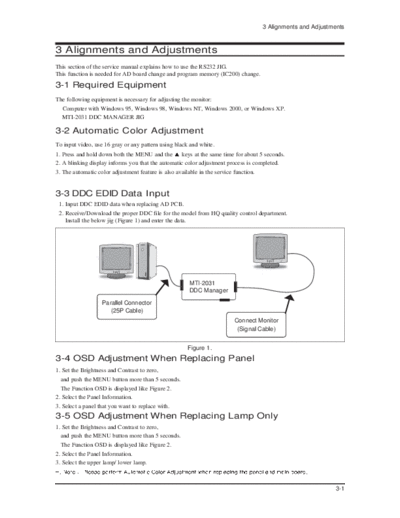
    Install the below jig (Figure 1) and enter the data.


                                                      MTI-2031
                                                      DDC Manager

                   Parallel Connector
                      (25P Cable)
                                                                         Connect Monitor
                                                                          (Signal Cable)


                                                      Figure 1.
3-4 OSD Adjustment When Replacing Panel
1. Set the Brightness and Contrast to zero,
  and push the MENU button more than 5 seconds.
  The Function OSD is displayed like Figure 2.
2. Select the Panel Information.
3. Select a panel that you want to replace with.
3-5 OSD Adjustment When Replacing Lamp Only
1. Set the Brightness and Contrast to zero,
  and push the MENU button more than 5 seconds.
  The Function OSD is displayed like Figure 2.
2. Select the Panel Information.
3. Select the upper lamp/ lower lamp.


                                                                                                             3-1
3 Alignments and Adjustments

3-6 Service Function Spec.
3-6-1 How to Display Service Function OSD
1. The OSD is displayed just like in 3-2.
2. To exit the service function, press the POWER key and restart the Monitor.


                                 Figure 2. The example of service function OSD


3-6-2 How to Control Service Function OSD
Use the      or     buttons to select an item that you want and press the Enter button.


                                                    :

                                            :


                      Figure 3. The display of the Panel Information in the Function OSD


3-2
                      3 Alignments and Adjustments

3-7 Hidden Key list


                                               3-3
3 Alignments and Adjustments


3-4
                                                                      3 Alignments and Adjustments

3-8 EDID Installation with Windows Program

                                           1. Execute "WinDDC.exe"


                                           2. Click "Sys Config"
                                              Select "Station : Write station"
                                             Check "Serial No and Week : Don't change"
                                             Click "Save"


                                           3. Click "Open" icon.
                                              Select "Connected Port #1" and Next "OK".
                                             * File Name - SM214TA1.DDC : Analog
                                                         - SM214TD1.DDC : Digital
                                             Press enter key on your keyboard.


                                           4. Confirm the "DDC OK".


- After Replacing the Main Board
- EDID Installation (Analog and Digital)


                                                                                               3-5
3 Alignments and Adjustments

Memo


3-6
◦ Jabse Service Manual Search 2026 ◦ Jabse Pravopis ◦ onTap.bg ◦ Other service manual resources online : Fixya ◦ eServiceinfo