Service Manuals, User Guides, Schematic Diagrams or docs for : . Car Manuals Acura 3.5RL 1996-2004 Approved srm RL9604A23053A
<< Back | HomeMost service manuals and schematics are PDF files, so You will need Adobre Acrobat Reader to view : Acrobat Download Some of the files are DjVu format. Readers and resources available here : DjVu Resources
For the compressed files, most common are zip and rar. Please, extract files with Your favorite compression software ( WinZip, WinRAR ... ) before viewing. If a document has multiple parts, You should download all, before extracting.
Good luck. Repair on Your own risk. Make sure You know what You are doing.
Image preview - the first page of the document
>> Download RL9604A23053A documenatation <<
Text preview - extract from the document
               Main Menu                        Table of Contents


Description
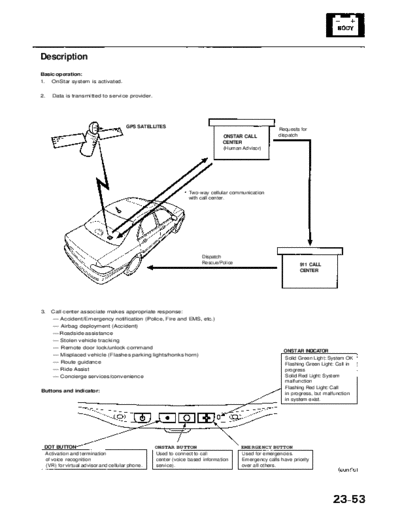
Basic operation:
1. OnStar system is activated.

2.   Data is transmitted to service provider.


                                     GPS SATELLITES                                                      Requests for
                                                                                 ONSTAR CALL             dispatch
                                                                                 CENTER
                                                                                 (Human Advisor)


                                                                    Two-way cellular communication
                                                                    with call center.


                                                                         Dispatch
                                                                         Rescue/Police                           911 CALL
                                                                                                                 CENTER


3.   Call center associate makes appropriate response:
     -- Accident/Emergency notification (Police, Fire and EMS, etc.)
     -- Airbag deployment (Accident)
     -- Roadside assistance
     -- Stolen vehicle tracking
     -- Remote door lock/unlock command
                                                                                                           ONSTAR INDICATOR
     -- Misplaced vehicle (Flashes parking lights/honks horn)
                                                                                                           Solid Green Light: System OK
     -- Route guidance                                                                                     Flashing Green Light: Call in
     -- Ride Assist                                                                                        progress
     -- Concierge services/convenience                                                                     Solid Red Light: System
                                                                                                           malfunction
                                                                                                           Flashing Red Light: Call
Buttons and indicator:                                                                                     in progress, but malfunction
                                                                                                           in system exist.


 DOT BUTTON                                         ONSTAR BUTTON                        EMERGENCY BUTTON
 Activation and termination                         Used to connect to call              Used for emergencies.
 of voice recognition                               center (voice based information      Emergency calls have priority
 (VR) for virtual advisor and cellular phone.       service).                            over all others.
                Main Menu                  Table of Contents


OnStar System ('02 Model USA)
 Description (cont'd)
 Stolen vehicle tracking:
 If the vehicle is stolen, the owner can report it to the call center. They will notify the authorities and track the vehicle loca-
 tion to assist in recovery.

 Virtual advisor:
 1.   Virtual advisor setup. A subscriber sets up a personal profile on their home computer through the internet at the
      OnStar web site.
      -- Stock portfolio
      -- Traffic
      -- Sports
      -- News
      -- Weather
      -- E-mail
 2.   Subscriber calls OnStar call center.
 3.   OnStar receives and processes request.
 4.   Profile accessed for requested information.
 5.   OnStar sends information back to subscriber. A computer voice relays the requested information.

 Cellular phone:
 The user can make a hands-free cellular phone call with one touch (by pressing the "dot" button), and by using voice
 recognition commands.

 Remote operation:
 Vehicle doors can be locked remotely if forgotten or unlocked when keys are accidentally left inside the vehicle. If the vehi-
 cle is misplaced in a parking lot, vehicle alert (honks the horn and Flashes the parking lights) can be requested remotely.
 NOTE: During normal vehicle operation, the system is in high power mode. After the ignition switch is turned OFF the sys-
 tem will go into low power mode for 48 hours, after that the system will switch to sleep mode to conserve battery power.
 When in low power mode, the system will switch back to the high power mode for 1 minute out of every 10 minutes for a
 period of 48 hours. Remote operation is only available during the 1 minute period of high power operation. When the sys-
 tem is in sleep mode, remote operation is not possible.

 Registering replacement components:
 If the OnStar control unit or the OnStar radio frequency modulator unit are replaced, you must call OnStar dealer support
 by regular telephone and register the new serial number(s).


           OnStar control unit:                                                 OnStar system radio
                                                                                frequency modulator unit:


                                                        SERIAL NUMBER


                                                                                       SERIAL NUMBER
             Main Menu                      Table of Contents


Emergency call operation:
    Button/Item           Pre-call status                             Call in progress                       Post-call status
 Emergency button        Button is pushed       Emergency call in progress
  OnStar button                                 This button is inactive during an emergency call
    Dot button                                  Ends emergency call when pushed
     Speaker                                    Sound of system calling      Call center communication
     Phone line              Waiting            Connecting to call cen-      Linking to     Call ends           Waiting
                                                ter                          call center    (Dot button
                                                                                            pushed)
    LED indicator           Green light                           Flashing green light                         Green light
   Audio volume                                 Can be adjusted at any time by turning the volume knob

OnStar Call operation:
    Button/Item           Pre-call status                             Call in progress                       Post-call status
 Emergency button                               Will switch over to an emergency call when pushed
  OnStar button          Button is pushed       OnStar service call in the progress
   Dot button                                   Ends OnStar service call when pushed
     Speaker                                    Sound of system calling Call center communication
    Phone line               Waiting            Connecting to call         Linking to    Call ends              Waiting
                                                center                     call center   (Dot button
                                                                                         pushed)
    LED indicator           Green light                           Flashing green light                         Green light
   Audio volume                                 Can be adjusted at any time by turning the volume knob

Voice recognition operation:
    Button/Item           Pre-call status                       Voice recognition mode in use                Post-call status
 Emergency button                               Will switch over to an emergency call when pushed
  OnStar button                                 Will switch over to OnStar service call when pushed
   Dot button            Button is pushed       Voice recognition mode is activated ends the voice
                                                recognition mode when pushed a second time
      Speaker                                   "Ready"                Feedback sound of voice recog-
                                                Acknowledgement        nition
    Phone line               Waiting                         Waiting for verbal command                         Waiting
   LED indicator            Green light                               Green light                              Green light
   Audio volume                                 Can be adjusted at any time by turning the volume knob

Voice recognition for cellular phone:
    Button/Item           Pre-call status           Voice recognition mode for cellular phone in use         Post-call status
  Emergency button                               Will switch over to an emergency call when pushed
   OnStar button                                 Will switch over to OnStar service call when pushed
    Dot button           Button is pushed        Voice recognition mode is activated ends the voice
                                                 recognition mode when pushed a second time
       Speaker                                   "Ready"        Feedback          Conversation in
                                                 Acknowled- sound of voice        progress
                                                 gement         recognition
     Phone line              Waiting             Waiting for verbal command       Linking to phone network       Waiting

    LED indicator           Green light                    Green light              Flashing green light       Green light

    Audio volume                                 Can be adjusted at any time by turning the volume knob
◦ Jabse Service Manual Search 2026 ◦ Jabse Pravopis ◦ onTap.bg ◦ Other service manual resources online : Fixya ◦ eServiceinfo