Service Manuals, User Guides, Schematic Diagrams or docs for : . Car Manuals Toyota Camry 1994.2002-2007 Approved Toyota Camry 2007 Hybrid 49 07camhvn quikref
<< Back | HomeMost service manuals and schematics are PDF files, so You will need Adobre Acrobat Reader to view : Acrobat Download Some of the files are DjVu format. Readers and resources available here : DjVu Resources
For the compressed files, most common are zip and rar. Please, extract files with Your favorite compression software ( WinZip, WinRAR ... ) before viewing. If a document has multiple parts, You should download all, before extracting.
Good luck. Repair on Your own risk. Make sure You know what You are doing.
Image preview - the first page of the document
>> Download quikref documenatation <<
Text preview - extract from the document
Finish
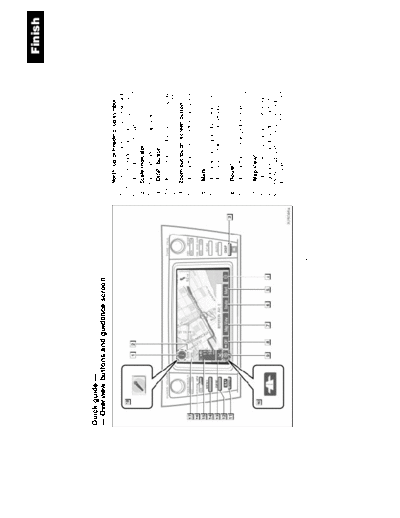
Quick guide --
-- Overview buttons and guidance screen
1 North-up or heading-up symbol
This symbol indicates a map view with
north-up or heading-up. Touching this sym-
bol changes the map orientation. . . . . . . 17
2 Scale indicator
This figure indicates the map scale. . . . 15
3 "DISP" button
Push this button to display the "Display"
screen. . . . . . . . . . . . . . . . . . . . . . . . . . . . 143
4 Zoom out touch-screen button
Touch this button to reduce the map scale.
. . . . . . . . . . . . . . . . . . . . . . . . . . . . . . . . . . . 15
5 "Mark"
Touch this button to register the current posi-
tion or the cursor position as a memory point.
. . . . . . . . . . . . . . . . . . . . . . . . . . . . . . . . . . . 10
6 "Route"
Touch this button to change the route.
. . . . . . . . . . . . . . . . . . . . . . . . . . . . . . . . 51, 54
7 "Map View"
Touch this button to browse information
about guidance route, to set the Points of In-
terest to be displayed on the screen, or to re-
cord the route. . . . . . . . . . . . 57, 59, 61, 61
iv
Finish
8 "AAOFF" 15 Distance and time to destination
Touch this button to obtain a broader view. Displays the distance, the estimated travel
Some of the buttons on the screen are not time to the destination, and the estimated ar-
displayed. They are displayed again by rival time at the destination. . . . . . . . . . . 50
touching "ON""". . . . . . . . . . . . . . . . . . 84 16 "INFO" button
9 Zoom in touch-screen button Push this button to display the "Information"
Touch this button to magnify the map scale. screen. . . . . . . . . . 2, 92, 95, 102, 144, 146
. . . . . . . . . . . . . . . . . . . . . . . . . . . . . . . . . . . 15 17 "GPS" mark (Global Positioning
10 Foot print map touch-screen button System)
Touch this button to display the foot print Whenever the vehicle is receiving signals
map and the building information. . . . . . 15 from the GPS, this mark is displayed.
11 "MAP/VOICE" button . . . . . . . . . . . . . . . . . . . . . . . . . . . . . . . . . . 182
18 Speech command system indicator
Push this button to repeat a voice guidance,
cancel one touch scroll, start guidance, and The microphone is shown by pushing the
display the current position. . . . . . . . . 8, 50 speech command switch. The speech com-
12 "DEST" button mand system can be operated while this in-
dicator is shown. . . . . . . . . . . . . . . . . . . 141
Push this button to display the "Destination"
screen. . . . . . . . . . . . . . . . . . . . . ix, x, 20, 21
13 Screen configuration touch-screen
button
Touch this button to change the screen
mode. . . . . . . . . . . . . . . . . . . . . . . . . . . . . . 13
14 "MENU" button
Push this button to display the "Menu"
screen. . . . . . . . . . . . . . . . . . . . . . . vi, vii, 64
v
Finish
-- Registering home
0U5047
2. Touch "My Places". 4. There are 12 different methods to
search your home.
See "Destination search" on page 21.
1. Push "MENU" button.
3. Touch "Register" of the home.
5. Touch "Enter".
The "Memory Point" screen is displayed.
vi
Finish
-- Registering preset
memory point
(Quick access)
0U5047
6. Touch "OK". 2. Touch "My Places".
Registration of home is complete.
You can change the icon, quick access,
name, location and phone number. (See " --
Editing memory points" on page 72.) 1. Push "MENU" button.
3. Touch "Register" of the memory
points.
vii
Finish
4. There are 13 different methods to 6. Touch "Quick Access". 8. Touch "OK".
search preset a preset memory point. Registration of the preset memory point is
See "Destination search" on page 21. complete.
You can change the icon, quick access,
name, location and phone number. (See " --
Editing memory points" on page 72.)
7. Touch one of preset buttons 1 to 5.
5. Touch "Enter".
The "Memory Point" screen is displayed.
viii
Finish
-- Operation flow: guiding
the route
0U5048
2. There are 13 different methods to 4. Touch "Guide", and start driving.
search destinations. Routes other than the one recommended
See "Destination search" on page 21. can also be selected. (See "Starting route
guidance" on page 40.)
1. Push "DEST" button. 5. Guidance to the destination is given
via voice and on the guidance screen.
3. Touch "Enter".
The navigation system performs a search
for the route.
ix
Finish
-- Setting home as the
destination
0U5048
4. Touch "Guide", and start driving.
2. Touch .
Routes other than the one recommended
The can be used if your home has been can also be selected. (See "Starting route
registered. (To register "Home", see " -- guidance" on page 40.)
1. Push "DEST" button. Registering home" on page 76.) 5. Guidance to the destination is given
via voice and on the guidance screen.
3. Touch "Enter".
The navigation system performs a search
for the route.
x
Finish
xi
◦ Jabse Service Manual Search 2026 ◦ Jabse Pravopis ◦ onTap.bg ◦ Other service manual resources online : Fixya ◦ eServiceinfo